Listeners · 18+
Connecting a toy
You do not need one. Most of the catalogue is audio and plays perfectly well with nothing connected. A haptic score is a layer some works carry on top, and when one does it says so on the card. This page is for when you do.
Where the button is: start something playing, and the player at the bottom of the screen grows a toy button. Pairing lives there rather than on a page of its own, because the player is the thing that outlives the page you are on. Pair once and it follows you around the site.
Which route do I want?
- On an iPhone or iPad
- The Lovense app. It is the only route that works there, and that is not something an update will change. Safari has never shipped Web Bluetooth on any iOS version, and on iOS every browser is Safari underneath.
- On an Android phone
- Bluetooth, in Chrome. It pairs straight from the browser exactly as a computer does, and nothing about your toy reaches this site. The Lovense app works too, if you would rather.
- On a computer
- Bluetooth first, in Chrome, Edge or Opera. If your toy is not in the list, or your browser has no Bluetooth, Intiface reaches the widest range of hardware there is.
The three differ in where your toy's commands travel. Bluetooth and Intiface stay on your own machine. Nothing about your toy reaches this site. The Lovense app relays them through Lovense's own service, on the creator's account with them. That relay is how it reaches an iPhone at all.
Works on any phone, iPhone included
You need the free Lovense Remote app, and your toy already paired to it.
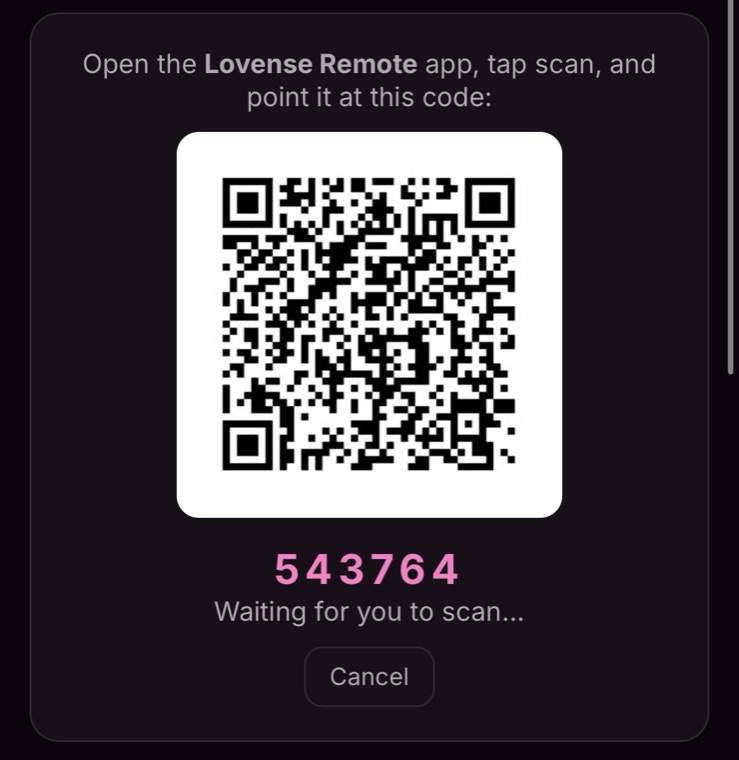
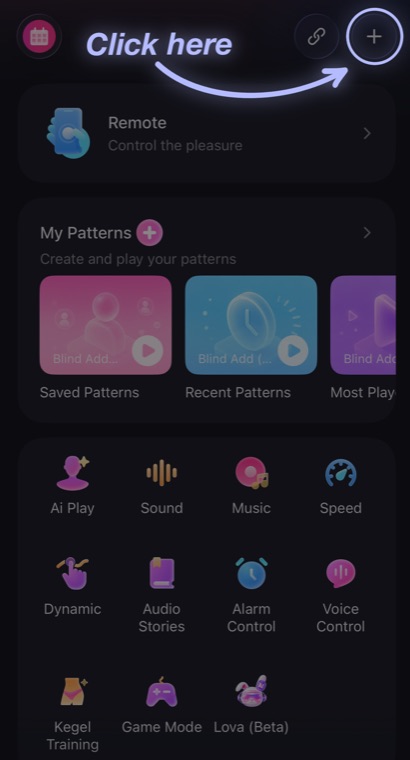
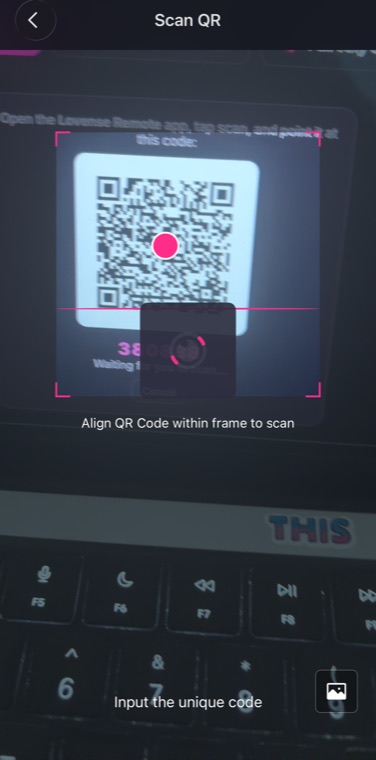
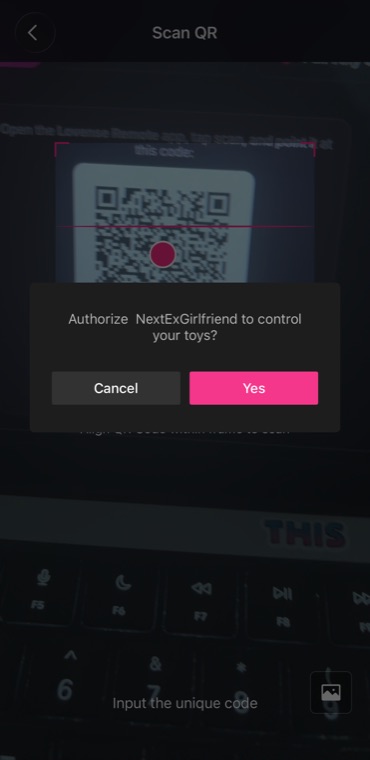
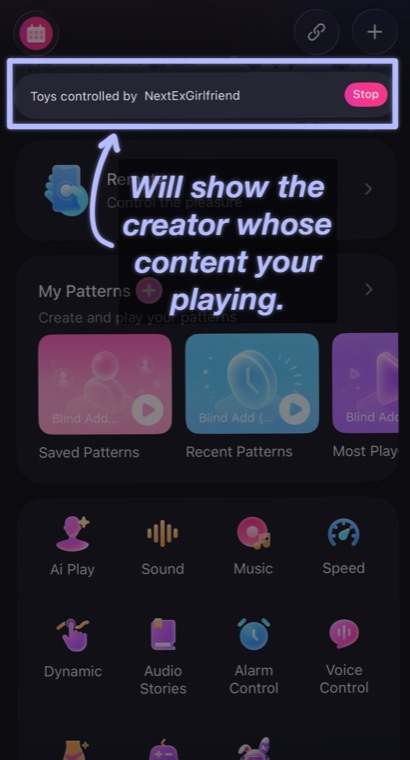
Go back to the work and press play.
The scanner will not read the code
Type it instead. In the scanner, tap Input the unique code at the bottom and enter the six digits shown under the QR.
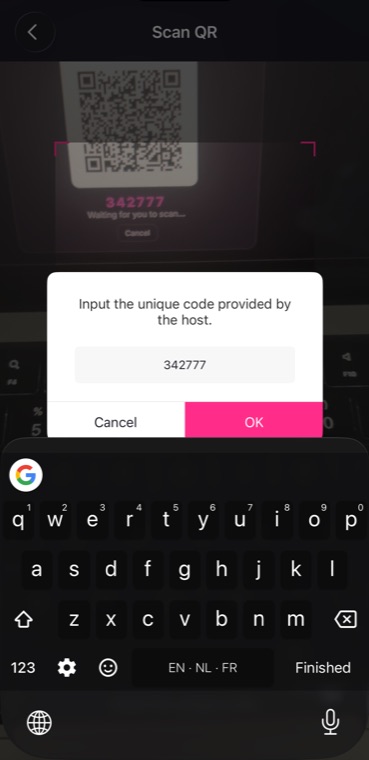
Straight from this browser, nothing installed
Your browser talks to your toy directly. Nothing about it reaches this site, and there is no app and no account in the middle.
Chrome, Edge or Opera, on a computer or an Android phone. Chrome on Android has Web Bluetooth and pairs just like a desktop does. What has never had it is iOS: Safari has not shipped Web Bluetooth on any version, and on an iPhone every browser is Safari underneath, so no app you install changes it. Firefox does not have it either. Where the browser cannot do it, Ferality does not show the button rather than offering one that can only fail.
- Start something playing and press the toy button on the player.
- Choose Bluetooth, straight from this browser.
- Your browser, not this site, shows you a list of nearby toys. Pick yours and press Pair. On Android, allow location if Chrome asks: Bluetooth scanning sits behind that permission on the operating system's side, not ours.
- The button reads Toy connected. Press play.
It is not in the list
Three things catch most of it:
- Wake the toy up and make sure it is not still connected to its own phone app, since most toys only talk to one thing at a time.
- Close the other app. Lovense Remote holding the toy will keep the browser from seeing it.
- If it still does not appear, your toy may not be one Web Bluetooth knows. Intiface covers a far wider range, and that is the tab next door.
The widest reach, and it works in any browser
Intiface Central is a free app from the Buttplug project that talks to toys using its own Bluetooth stack. Two things follow from that, and they are the reasons to use it:
- It knows far more hardware than a browser does: hundreds of toys across most makers.
- It is a plain connection to an app on your own computer rather than a browser feature, so it works in Firefox and Safari too, which have no Web Bluetooth at all.
It needs a computer. Intiface Central is a desktop app, so there is nothing to run on a phone. On an Android phone use Bluetooth in Chrome; on an iPhone, the Lovense app.
- Install Intiface Central from intiface.com/central for Windows, macOS and Linux.
- Open it and press Start Server. It listens on
ws://localhost:12345, which is the default and does not need changing. - In Intiface, scan for your toy and connect it there. Intiface keeps its own device list, and Ferality reads from it.
- Back here: start something playing, press the toy button, and choose Intiface.
“Can't reach Intiface Central”
The app is not running, or its server is not started. Open Intiface and press Start Server. The button says Stop Server once it is listening.
“Intiface is running but has no toy connected”
Different problem, different fix: Ferality reached the app and the app has nothing paired. Scan for your toy inside Intiface first, then come back.
Ferality drives Intiface through the Buttplug protocol, the same one Intiface itself speaks. Nothing about your toy reaches this site.
Stopping
Three ways, any of which work on their own: press stop on the work, close the page, or hit Stop in the Lovense app. Nothing can drive your toy once the page is gone.